Indennizzo Diretto
The paper car-accident statement, rebuilt as a guided flow on the phone.
- Role
- Flutter developer: the whole client app
- Client
- LC Solutions
- Period
- 2021–2023
- Platforms
- iOS, Android and web from one codebase
The product
After a car accident in Italy both drivers fill in the CAI, the “constatazione amichevole di incidente”: a dense two-column paper form most people meet for the first time at the roadside, usually shaken and in a hurry.
Indennizzo Diretto turned that form into eight guided steps on the phone (GPS for the place, the camera for the evidence, a finger for the signatures), then took over the claim with the insurer on the driver’s behalf and kept them posted on its progress.
- 8
- guided steps replace the paper form
- 3
- platforms from a single Flutter codebase
- 18k
- lines of Dart in the client
- 96%
- of the app’s commits are mine (239 of 248)
Walkthrough
The app, in motion
Pick a recording, or jump straight to a chapter.
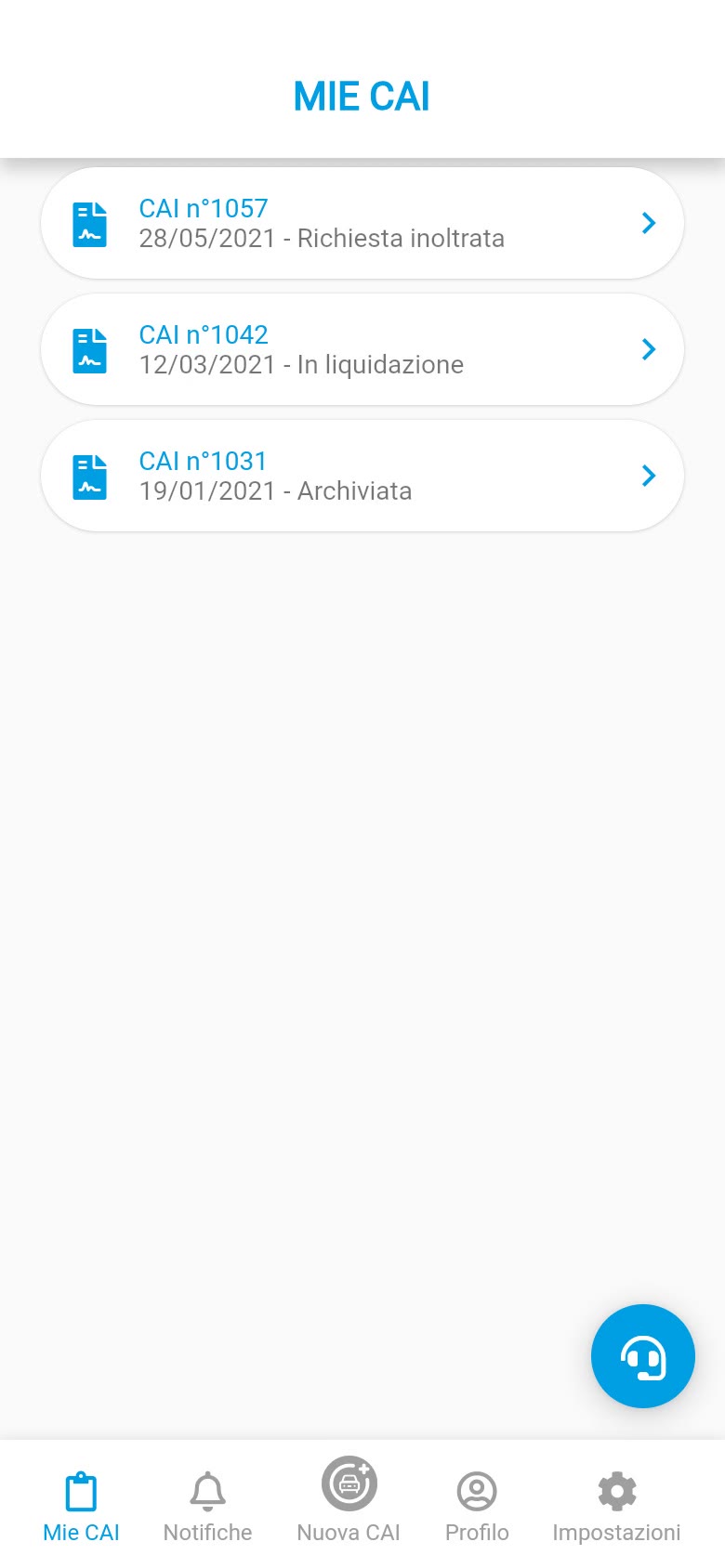
Recorded from the real app running on its demo backend. No sound.
What it does
From the roadside to a signed statement
01
A form that fills itself where it can
Date and time come from the clock, the address from GPS through reverse geocoding, personal details from the profile. Brand, model and insurer are looked up on the server as you type. The first answer (two vehicles, a pile-up, or a pedestrian) decides which of the following steps are needed at all.
02
Evidence collected on the spot
Driving licence photos, guided shots of the damage from suggested angles, a tap on the car outline to mark the first point of impact, a voice memo describing what happened, and witnesses with their documents. Every attachment is uploaded as it is taken and downloaded again as thumbnails when the claim is reopened.
03
The official layout, translated
The statement’s seventeen standard circumstances keep the two-column logic of the paper form, colour-coded like the original: blue for vehicle A, yellow for vehicle B. The counterpart’s sections switch the whole screen to yellow so both drivers always know whose data is on screen.
04
Signed on the glass, delivered as a PDF
Both drivers sign on the phone, along the long side of the screen for a full-width signature. After accepting the mandate, the claim is submitted and the official statement comes back as a PDF, compiled and signed, rendered inside the app.
05
Following the claim
Submitted claims become read-only and the stepper turns into free navigation. Status changes arrive as push notifications, and the support desk is one tap away on WhatsApp or SMS from every screen.
06
Getting in
A three-page intro, a guest mode with a demo claim to explore before committing, registration with e-mail verification, and sign-in with e-mail, Facebook, Google or Apple.
Responsive
One codebase, three platforms
The same Flutter code shipped to iOS and Android and also ran on the web. Above 800 px the bottom bar becomes a side menu and the forms sit in a readable column; platform differences (secure storage, camera, audio recording, push) are isolated behind small wrappers.
Web layout: claimsSide navigation replaces the bottom bar on wide screens. Web layout: claim formSame widgets, constrained to a readable column. Web layout: summarySummary, status and signatures on a wide screen.
Under the hood
How it was built
State and structure
Screens are driven by hand-rolled BLoCs on RxDart streams (22 of them, one per screen or form step), with an inherited widget carrying the session. A parent BLoC owns the claim being edited; each step validates, saves its slice to the API and hands the updated model back, so a claim can be abandoned and resumed at any step.
Talking to the backend
A thin REST layer with bearer tokens and transparent re-authentication, multipart uploads for photos, signatures and audio, and explicit request/response mappers between the server’s JSON and the app’s models.
Device features
Geolocation with OpenStreetMap geocoding and address autocomplete, camera capture, audio recording and playback, a signature pad, in-app PDF rendering, and Firebase Cloud Messaging with local notifications.
The real app, running on its own
Not a mock-up: the original app, running again
Without its servers the app cannot get past the login screen, and those servers are a live service holding real people’s accident claims. Rather than mock up pictures of it, I made the real code run on its own: in a browser, with nothing behind it.
- 1
A backend that lives in the app
The network layer now hands every request to an in-memory mock that speaks the same routes and JSON as the original API. Services, models and BLoCs run unchanged: what you see is the production UI doing its real work against fictional data.
- 2
Documents generated on the fly
The statement and mandate PDFs used to be produced server-side. The demo lays them out in Dart from whatever was typed into the form, including both signatures, the impact sketch and the photos.
- 3
Stand-ins for the hardware
Camera, microphone and GPS are replaced with sample photos, a recorded voice memo and a fixed position, so the full flow works in a browser tab without asking for a single permission.
- 4
Recorded by a script, not by hand
Flutter draws on a canvas, so there is no DOM to click. A Playwright storyboard finds widgets through Flutter’s accessibility tree, drives them with real touch events and records Chrome’s screencast at device resolution. Every clip and screenshot here can be regenerated with one command.
All people, plates and claims shown are fictional. Contact details and API keys were removed from the demo build.
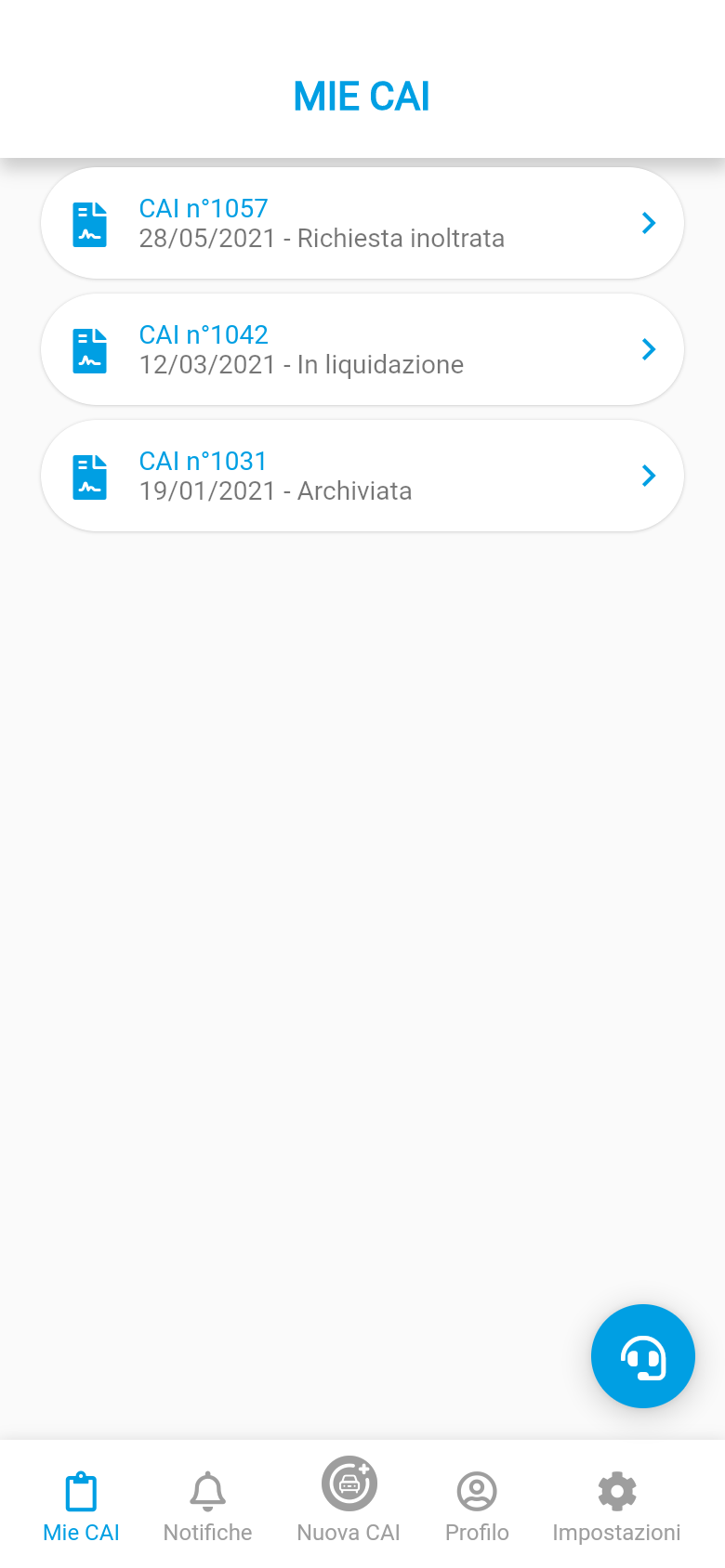
Runs entirely in your browser. Sign in with any e-mail and password, or explore the demo claim as a guest. Drag to scroll, like on a phone.
Every screen
The full set of screenshots
OnboardingFirst of three intro pages shown on first launch. Onboarding: fill in the form in the appThe pitch: the paper accident statement, done on the phone. Guest modeWithout an account the app offers a read-only demo claim to explore. Sign inEmail and password, or social sign-in. My claimsEvery claim with its date and current status. Swipe to delete drafts. RegistrationValidation on every field; consent to privacy policy and terms is required. E-mail verificationA four-digit code sent by e-mail confirms the address. Empty stateA new account has no claims yet: the centre button starts the first one. Step 1: When and whereDate, time and address are pre-filled from the clock and GPS (reverse geocoding). Date pickerWheel pickers for date and time. Step 1: What happenedThe answer decides which of the next steps are needed. Step 2: Policy holderPersonal data pre-filled from the profile, address with autocomplete. Step 2: My vehicleBrand, model and insurer are searched on the server while typing. Step 3: Driver, photos, point of impactLicence photo, tap the car to mark the first impact, guided damage photos. Step 4: The other vehicleThe counterpart section is colour-coded yellow, like the paper form. Step 6: CircumstancesThe 17 standard circumstances, one column per vehicle. Step 7: Voice memoDescribe what happened by voice; the recording is attached to the claim. Step 7: Adding a witnessWitnesses and injured people, each with their ID photos. Step 8: SummaryEverything entered, grouped in expandable sections, editable before signing. SignatureBoth drivers sign on the phone; the pad is used along the long side. Mandate and submissionAccept the mandate and privacy terms, then send the claim. MandateThe mandate letter rendered as a PDF inside the app. Generated accident statementThe official statement, filled in and signed, as a PDF. Claim submittedBack on the list the new claim is "Request sent". Submitted claim: vehicleSubmitted claims are read-only; the stepper becomes free navigation. Submitted claim: photos and impactAttachments are downloaded on demand as thumbnails. Submitted claim: circumstancesVehicle A was stopped, vehicle B ran into it. Submitted claim: summary and statusStatus banner, signatures and the generated documents. Stored signatureThe signature as saved on the server. Accident statement PDFThe statement rendered in-app. NotificationsStatus changes pushed by the back office (Firebase Cloud Messaging in production). ProfileAccount data, password change, sign out. SettingsContacts and legal documents. Support shortcutWhatsApp or SMS to the support desk, one tap away.
Next case study
nexi_payment →